


Manage lessons
Manage lesson enrollments
Learn how to enroll members in lessons, manage enrollment lists, and invoice participation in a few simple steps.
Managing lesson enrollments is at the heart of running your tennis club. Plugin.ch lets you quickly enroll members, view participation lists, and automatically invoice the lessons attended. This tutorial guides you step by step through each operation.
Enroll a member in a lesson
To add a member to a lesson, go to the enrollment management module from the main menu.
Steps to follow:
- Go to LESSONS → MANAGE ENROLLMENTS from the main menu (see image below)
- Select the lesson you want to enroll the member in
- Start typing the member's name — the first few letters are enough to get a suggestion
- Select the member from the drop-down list that appears
- Choose the enrollment option (rate, category, etc.)
- Click “Enroll in lesson” to confirm the enrollment
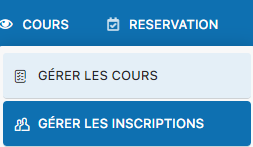
Access to the enrollment management menu
Tip: Searching by the first letters of the name speeds up selection. You don't need to type the full name.
Understanding error messages
When enrolling a member, Plugin.ch may display a warning message if the member's criteria don't fully match the lesson's criteria (age, level, member category, etc.).
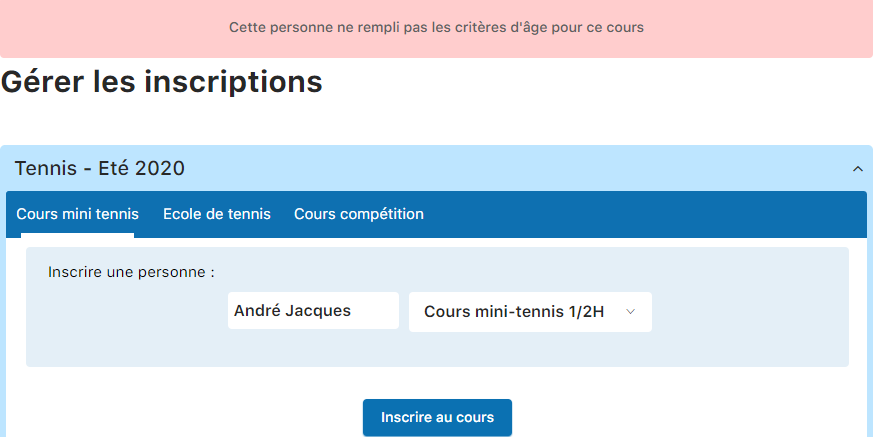
Example of a warning message when criteria don't match
Important: Displaying an error message does not prevent enrollment. By clicking “Enroll in lesson”, the member will be enrolled even if a warning was generated. This allows some flexibility in handling special cases.
View the enrollment list
You can view who is enrolled in a given lesson at any time. This is useful for checking the number of participants and keeping overall track.
Procedure:
- Go to LESSONS → MANAGE ENROLLMENTS
- Select the lesson for which you want to see the list
- View the participants displayed on screen
- Scroll down the page to see the entire list

Selecting the lesson to display the enrollment list
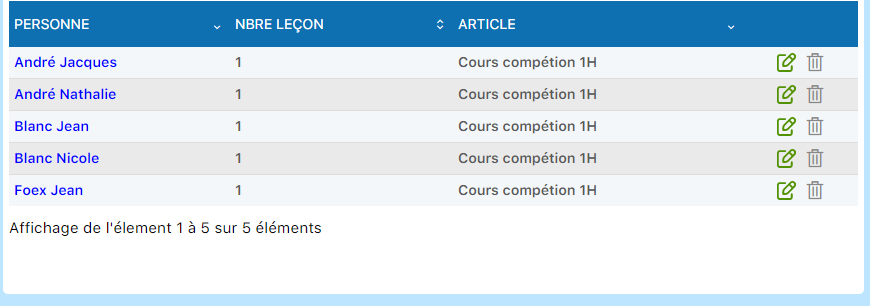
Enrollment list displayed for a lesson
Edit or delete an enrollment
From the enrollment list, you can easily edit or cancel a lesson participation.
Icons available for each enrollment:
- Pencil icon (📝) — Click to edit the enrollment details
- Trash icon (🗑) — Click to delete the enrollment
Tip: Before deleting an invoiced enrollment, make sure to cancel the corresponding invoice to avoid accounting inconsistencies.
Print the enrollment list
Plugin.ch offers two export formats for printing or viewing the list of enrollees: a short format and a detailed format with complete member information.
Export options:
- “Excel” — Generates a short list with the participants' names
- “Excel +” — Creates a detailed file including contact information, address, and other member details
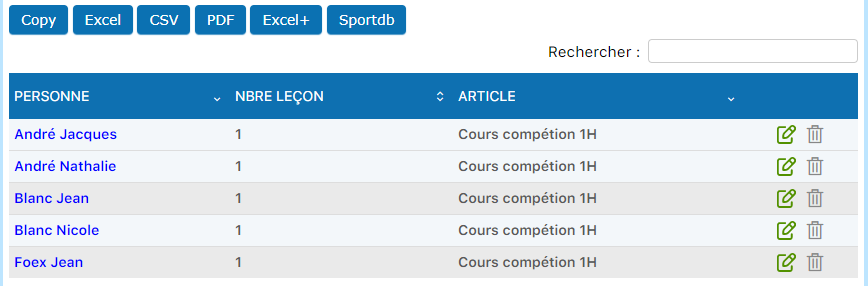
Available Excel export buttons
Tip: Use the “Excel +” format to share contact information with coaches, or the short format for a simple attendance list to print.
Invoice lesson enrollments
One of the important steps in managing lessons is invoicing enrollments. Plugin.ch lets you automatically generate invoices based on the lessons attended by members. It is recommended to invoice enrollments before creating lesson groups.
Invoicing procedure:
- Display the enrollment list of the lesson to invoice
- Click “Invoice enrollments”
- Select the group (e.g. “Tennis school 2020”)
- Choose the lessons to include in the invoicing (e.g. all “Mini tennis” lessons)
- Confirm the generation of the invoices
- Repeat the operation for the other lesson groups
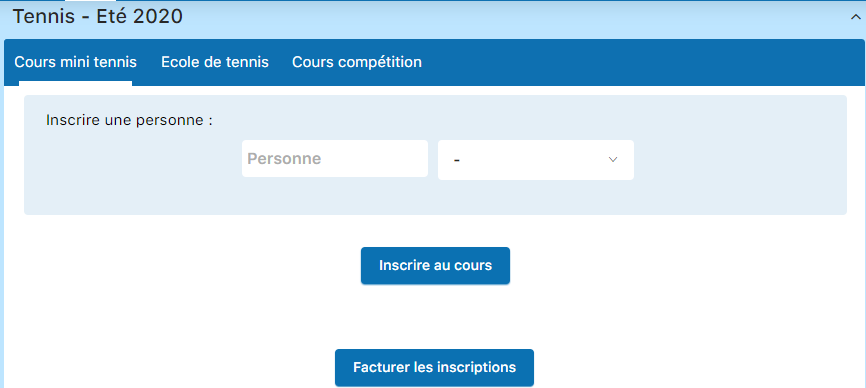
Invoice enrollments button

Selecting the lessons to invoice
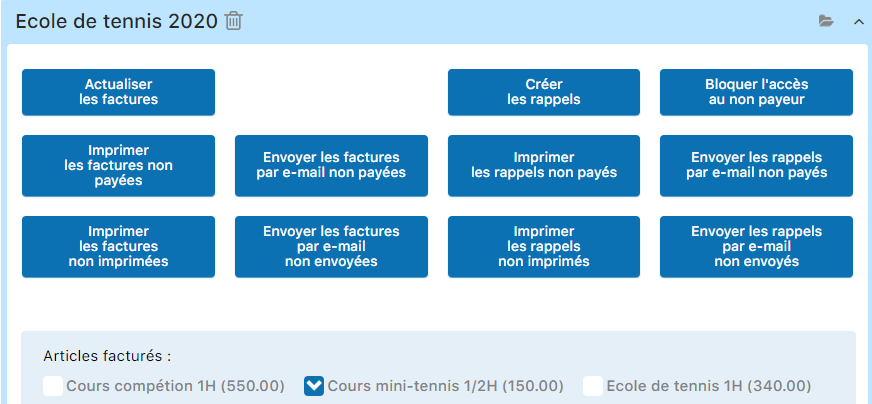
Example: invoicing the “Tennis school 2020” group

Invoicing detail
Good to know: Invoiced amounts are calculated automatically based on the member's category and the rates defined for the lesson. Applicable discounts (subscription, student status, etc.) are taken into account.
Correct invoicing errors
An error in a member's data (wrong category, incorrect status) can sometimes generate an inaccurate invoice. Plugin.ch lets you correct these errors in a few steps.
Concrete correction example:
A member had the “Student” category instead of “Junior” and therefore did not receive the applicable discount. The invoiced amount was CHF 150 instead of CHF 100.
Initial incorrect invoice: CHF 150
Correction steps:
- Delete the incorrect invoice from the invoicing module
- Delete the enrollment of the member from the lesson
- Change the member's category (e.g. changing from “Student” to “Junior”)
- Re-enroll the member in the lesson
- Generate a new invoice with the correct settings
- Refresh the invoices to see the updates

After correction: CHF 100 with the Junior discount applied
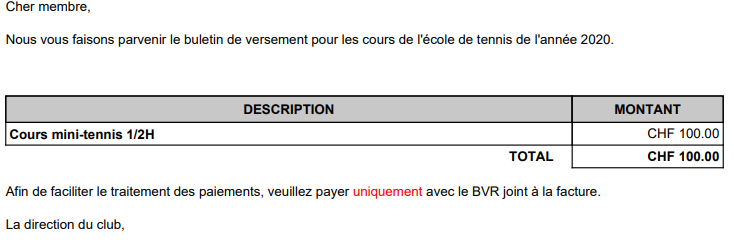
Example of a printed invoice
Tip: Always check members' categories and statuses before invoicing to avoid later corrections. Auditing the data before mass invoicing will save you time.
Export to Youth and Sport (J+S)
If your club wants to take part in the Youth and Sport program, Plugin.ch lets you export the enrollment list directly in a format compatible with the J+S database (SportDB).
How to export for J+S:
- Display the enrollment list of the lesson to export
- Look for the “Sportdb” button in the export options
- Click “Sportdb” to generate the CSV file
- Download the file and import it into the J+S platform
Sportdb button for J+S export

CSV file generated for SportDB
Important: Make sure your club's data (J+S club number, lesson identifiers) is correctly configured in Plugin.ch so the export is compatible with SportDB.
Summary of operations
- ✓ Enroll members quickly in a few clicks
- ✓ View and print enrollment lists
- ✓ Edit or delete enrollments freely
- ✓ Automatically invoice lessons with automatic discount calculation
- ✓ Correct invoicing errors easily
- ✓ Export to Youth and Sport in one click
Plugin.ch tutorial — Manage lessons