


Manage settings
Manage general settings
Configure all your club's fundamental settings in just a few clicks
1
Go to the general settings
From the main menu, click menu, then select “Manage settings” to access the configuration screen.

Main menu with access to settings
2
Explore the configuration screen
The general settings screen shows a full list of options you can enable or disable as needed. Each option is a simple toggle (Yes/No) to customize how your booking system works.
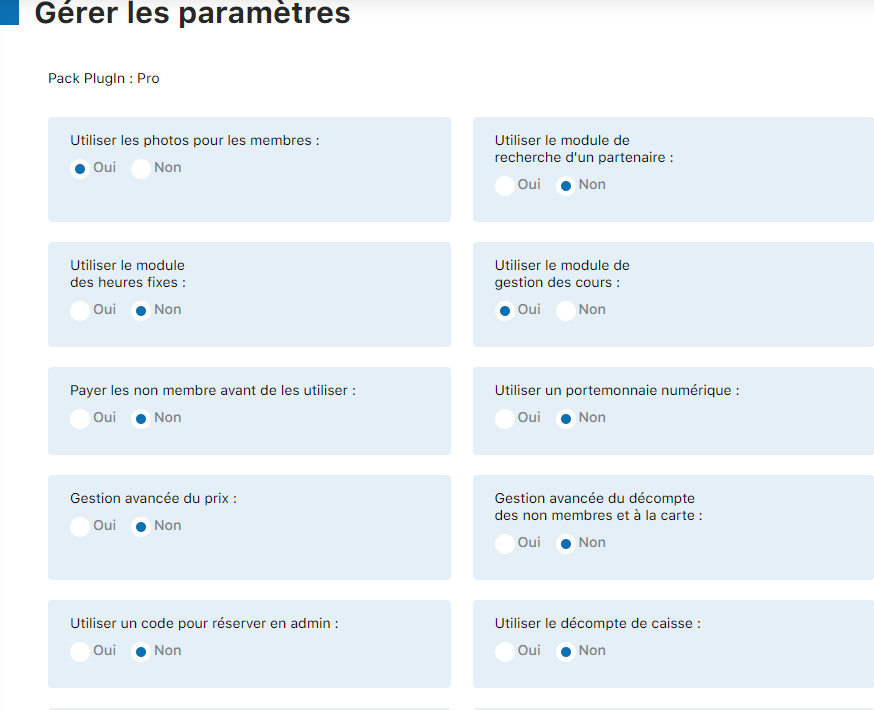
Overview of settings
Tip: Settings are spread across several screens. Feel free to scroll to see all the available options.
Available settings
Member management
| Use photos for members | Displays profile photos in the system |
| Do not display member names | Hides names for greater privacy |
| Display player names in the slot | Displays names on the booking slots |
Booking modules
| Use the partner search module | Lets members find a partner |
| Use the fixed hours module | Enables fixed hours (bubbles, winter hours, etc.) |
| Use the lesson management module | Manages lesson registrations |
| Use a code to book as admin | Requires a code for admin bookings |
Payment and wallet
| Charge non-members before use | Requires payment before access for visitors |
| Use a digital wallet | Enables the virtual wallet system |
| Advanced price management | Enables time-based pricing |
| Advanced non-member count management | Detailed tracking of visitor quotas |
| Use the cash count | Manages cash inflows |
Interface and additional options
| This computer is a kiosk | Enables kiosk mode for public access |
| Use the virtual keyboard | Displays an on-screen keyboard for kiosks |
| Show help | Displays contextual help messages |
| Enjoy Tennis Warehouse offers | Enables partner offers |
3
Save your settings
Once you have configured all the settings as needed, click the button “Edit settings” at the bottom of the page to save your changes.

Settings confirmation button
Tip: After saving your changes, immediately test the system's behavior to make sure everything works as expected.
Warning: Some settings can immediately affect how the system works. For example, enabling or disabling the digital wallet changes the billing method. Plan these changes outside of booking hours.
Plugin.ch Tutorial — Manage settings