


Print invoices
Manage invoices
Printing is a key step in the invoicing process. Plugin.ch generates print-ready PDF files. This tutorial guides you through the various printing options available.
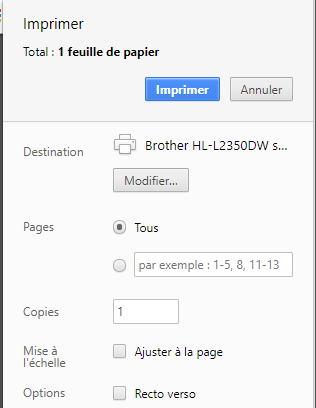
Before printing, make sure that "Scaling" is DISABLED in your printer settings. This ensures the QR code and invoice dimensions remain correct.
Print a single invoice
You can print a specific invoice in just a few clicks.
Access invoice management
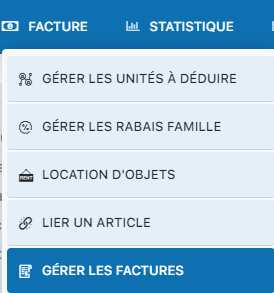
Go to INVOICE / MANAGE INVOICES.
Open the group containing the invoice

Select and print
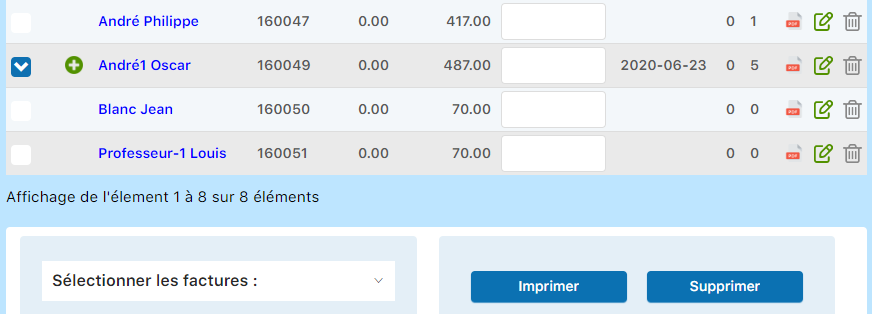
Click the invoice, then click the button "Print". A PDF opens in a new tab. Use your browser's print function or save the PDF.
Print all unprinted invoices
This feature lets you generate a single PDF containing ALL invoices that have not yet been printed. Very handy for a bulk mailing.
Open the invoice group
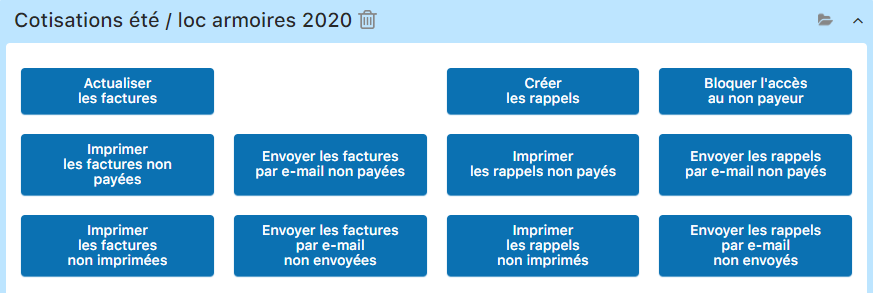
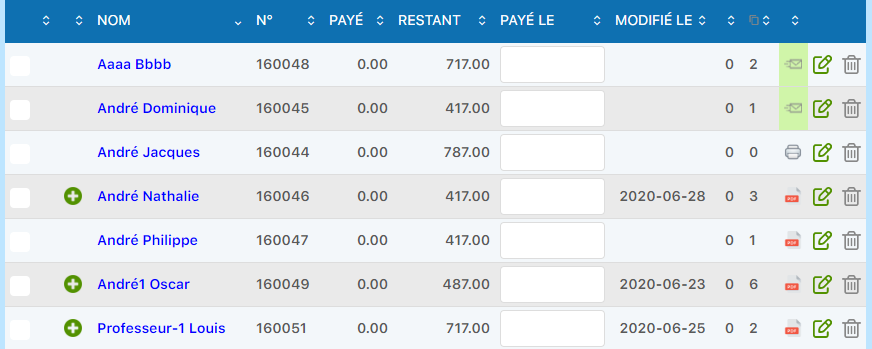
Click "Print unprinted invoices"
This action generates a single PDF containing all invoices that have not been printed.

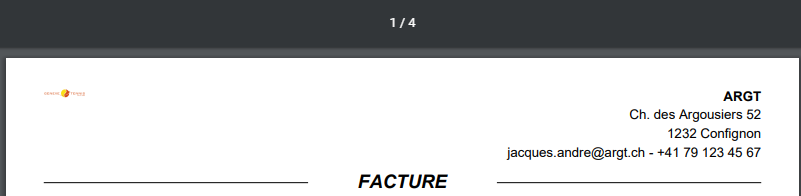
View the generated PDF
A PDF opens with all unprinted invoices, ready to be printed in a single operation.
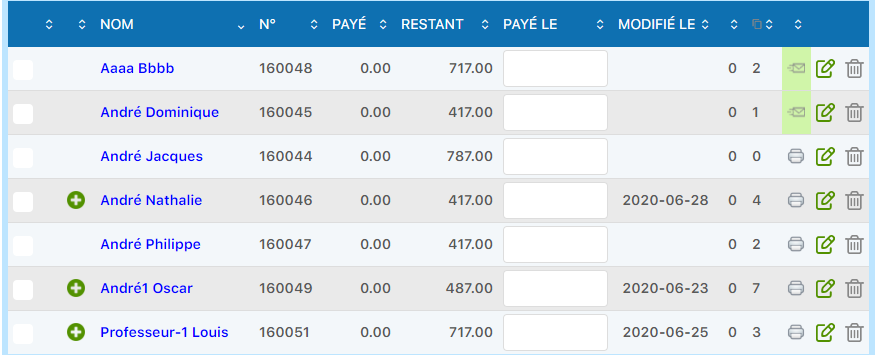
Printer icon = printed invoice
Once printed, invoices display a printer icon. The system automatically switches their status after printing.
Print unpaid invoices
This feature is ideal for reminders. It generates a PDF with all invoices awaiting payment that can be invoiced on paper.
Access invoice actions
From the main invoice view, locate the section of available actions.

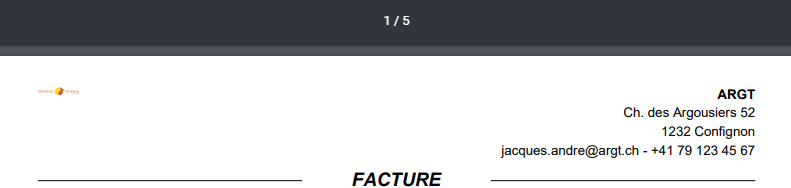
Click "Print unpaid invoices"
A PDF gathering all printable unpaid invoices opens and is ready to be printed.
Always disable "scaling" in your browser or printing software. Plugin.ch invoices are calibrated at 100% and contain a QR code that must remain exact to work correctly.
Plugin.ch Tutorial — Manage invoices