


Process installments
Manage unidentified payments and anomalies
Category: Process installments
Introduction
After each bank file is processed, Plugin.ch automatically createsinstallment lines for all unidentified payments or detected anomalies. These special payments require manual intervention to be processed correctly.
To access the installments list, go to the menu INVOICE / INSTALLMENTS LIST. An important check: after each operation, the installments list should show a total of 0 CHF, which means all payments have been correctly processed.
Accessing the installments list
Here's how to access and review your installments list:
Step 1: Go to the INVOICE menu in the main navigation
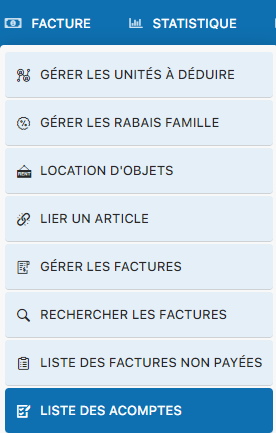
Step 2: Select "INSTALLMENTS LIST" to display all payments to be processed
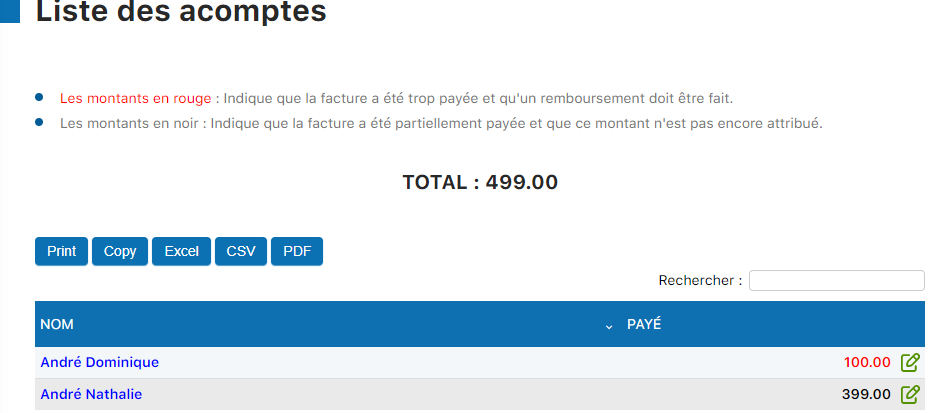
💡 Tip: Check your installments list regularly after each bank file processing. A total of 0 CHF means all payments have been correctly identified and processed.
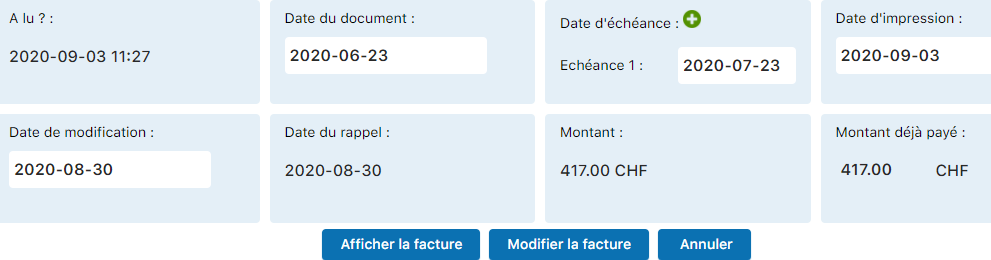
Double payment with the same BVR
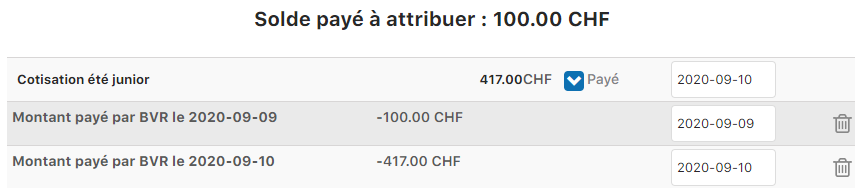
A member makes two successive payments using the same BVR number, for example: first 100 CHF, then 417 CHF for the same invoice. Plugin.ch detects this anomaly and the installments will need to be processed.
Situation detected
In the payments list: You will see two successive entries for the same BVR with different amounts (100 CHF and 417 CHF).
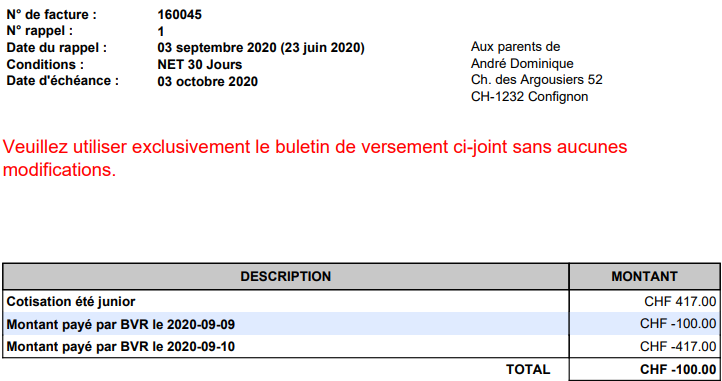
Both payments appear in the bank payments list.

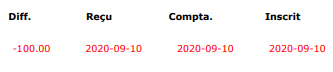
In the installments list: An amount to be processed will appear (the overpayment).

Processing the anomaly
Step 1: Click the pencil icon to view the installment details.
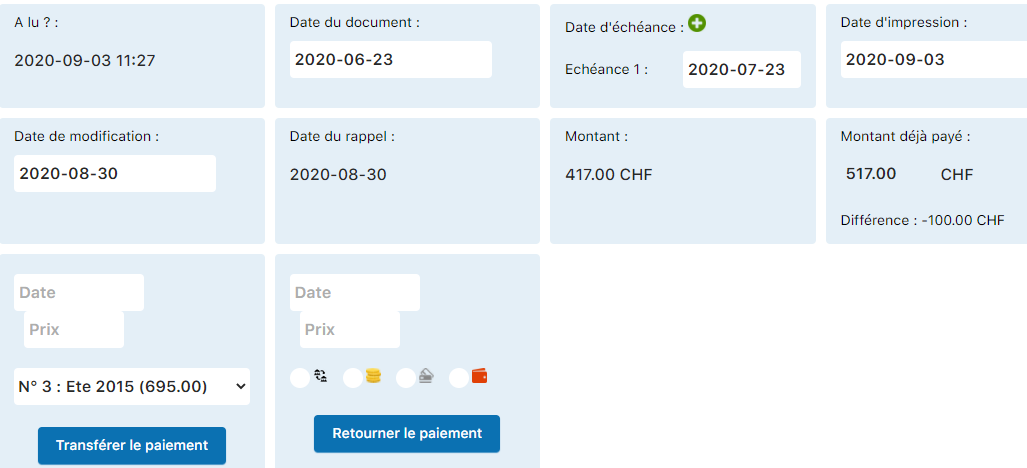
Step 2: Use the "Return payment" button to initiate a refund of the overpayment.
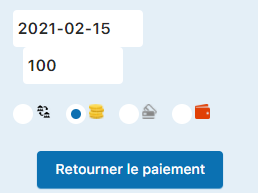
A window then appears with the following information to fill in:
- Refund date: Enter the date the refund should be made
- Amount to refund: Confirm the amount of the overpayment
- Refund method: Select the method from the 4 available options
The 4 available refund methods:
Return to account
Transfer to the member's bank account
Cash refund
Cash payment at the counter
Credit card
Refund to the credit card used
Digital wallet
Via Twint, Apple Pay, or another wallet


Step 3: Once all details are filled in, click the "Return payment" button to confirm the operation.
Final result
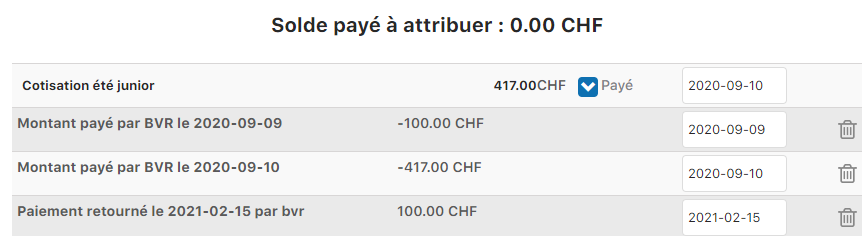
After processing, the installment disappears from the list and the invoice is updated with the refund information.

Payment using the wrong BVR
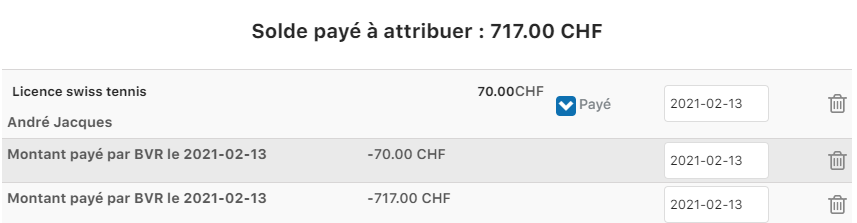
A member correctly pays an invoice (for example, a license for 70 CHF), then uses the same BVR to pay another invoice (for example, a subscription fee for 717 CHF). Plugin.ch detects that the second payment is not linked to the correct invoice.
Processing the correct payment
Step 1: Start by processing the first correct payment (license 160055 for 70 CHF).




Processing the payment on the wrong invoice
Step 2: Now, process the second payment that was applied to the wrong invoice (160058 subscription fees for 717 CHF).




Transferring the payment to the correct invoice
Step 3: Check the installments list. You will see the 717 CHF payment that needs to be transferred to the correct invoice.

Step 4: Click the pencil icon to open the installment details. You will see an area called "Transfer" that lets you redirect this payment to the correct invoice.
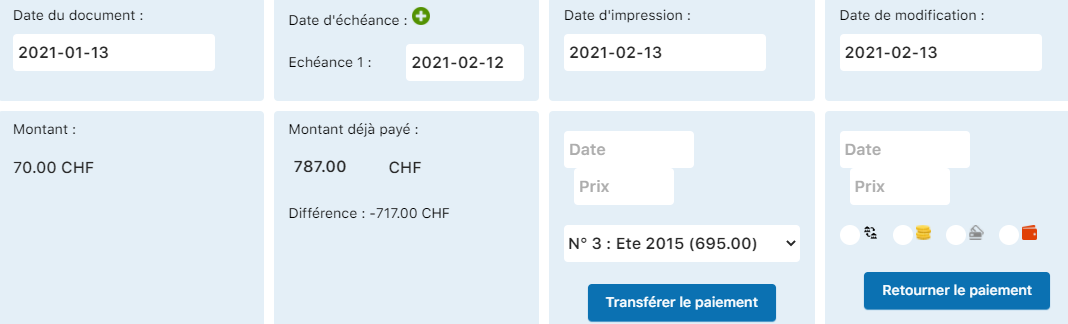
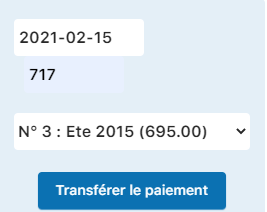
Step 5: Select the destination invoice (in this example: "Subscription fees 2021" - invoice 160058).
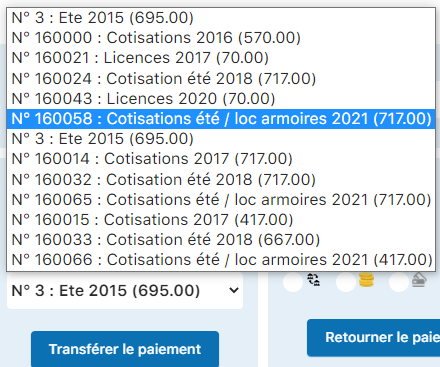
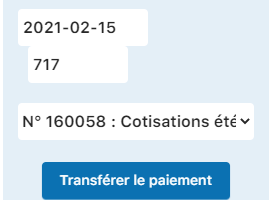
Step 6: Click "Transfer payment" to confirm the operation.
Final result
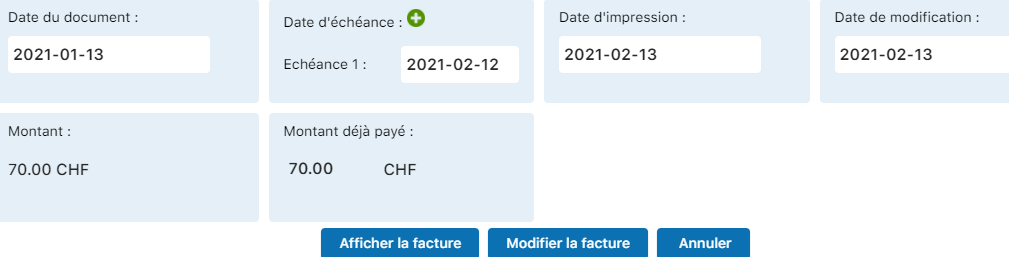
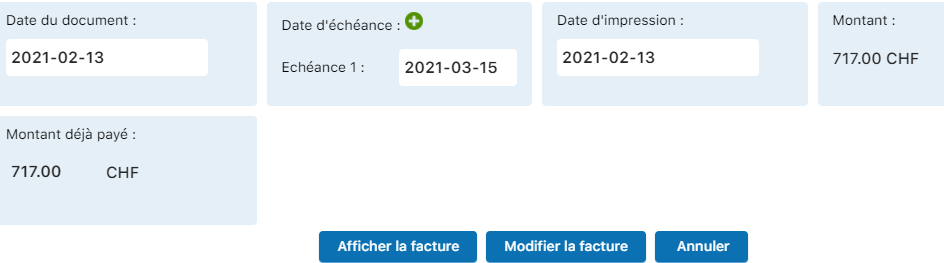
The payment is now linked to the correct invoice. Both invoices are updated correctly.

Payment lower than the amount due
A member partially pays an invoice. For example, an invoice for 417 CHF but they only pay 399 CHF, leaving 18 CHF unpaid. This situation is identified by Plugin.ch and must be handled with care.
Situation detected
Invoice concerned: Invoice 160046 amount: 417 CHF

Payment received: 399 CHF, highlighted in ORANGE in the payments list.
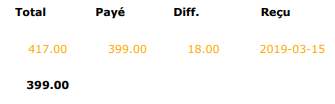
Partial payment summary:
• Total amount due: 417 CHF
• Amount paid: 399 CHF
• Remaining amount due: 18 CHF

Recommended actions
Step 1: Check the invoice status by clicking the status icon to see the updated reminder.
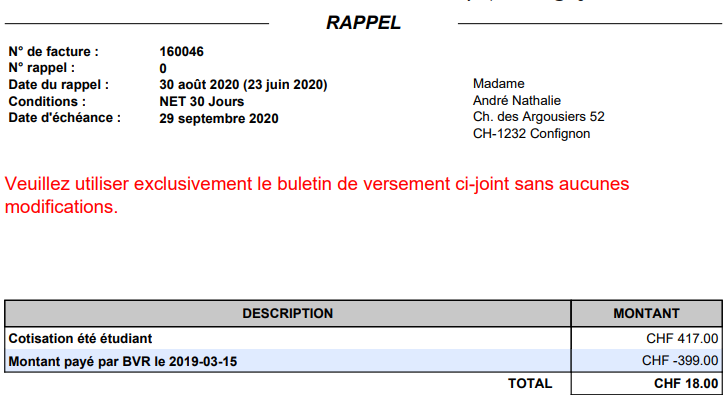
Step 2: Important: reprint or resend the invoice to the member with the new amount due (18 CHF remaining).
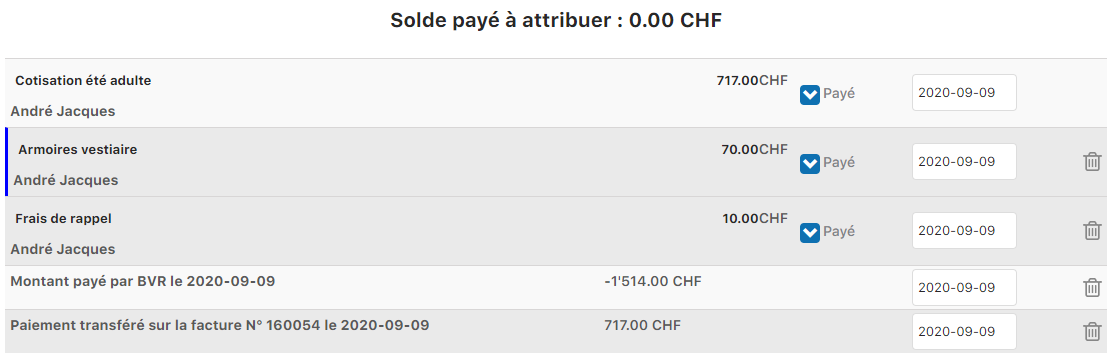
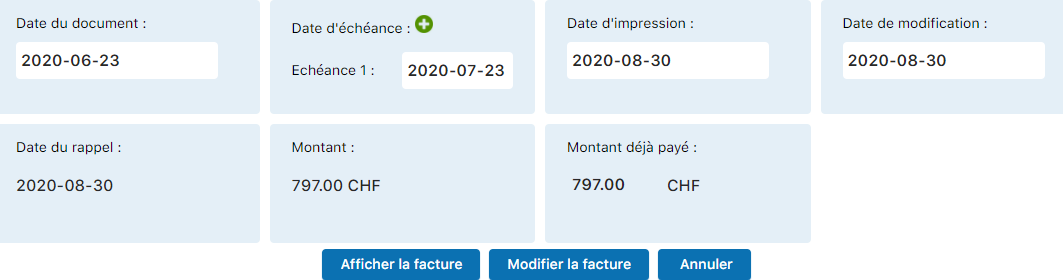
Note: Associated invoices are also updated automatically.

⚠️ Warning: Make sure the invoice is not yet closed (no payment date) before making these changes. An invoice with a partial payment remains open until the balance is received.
Payment higher than the amount due (overpayment)
A member pays more than what is due. For example, an invoice for 40 CHF is paid with 100 CHF, creating a credit of 60 CHF that will need to be refunded or applied later.
Situation detected
The invoice to be paid:

The payment received: 100 CHF (overpayment of 60 CHF)


The generated installment: 60 CHF overpayment to process

Processing the overpayment
You have two options for handling this overpayment:
Option 1: Refund the overpayment
Use the "Return payment" function (as in Case 1) to refund the 60 CHF using one of the 4 available refund methods (account, cash, card, digital wallet).
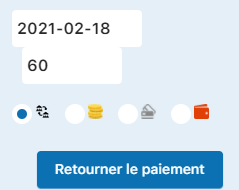
Result after refund:


Double payment within the same file sequence
Sometimes, the same bank file can contain several payments from the same member: a correct payment for one invoice and a payment with a modified amount for another, plus possibly a payment for another member. Plugin.ch detects these multiple anomalies within a single sequence.
Situation detected
XML file content: Several payments detected from the same bank file

Handling multiple anomalies
Process: First process the overpayment by transferring it to the correct invoice, then process the second payment manually using the techniques described in the previous cases (Case 2 for the transfer, Case 4 for overpayments).
💡 Tip: When you have several anomalies in the same file, handle them systematically one at a time, starting with transfers, then refunds.
Overpayment as a donation
Some members intentionally pay more than the amount due, either on purpose or to make a donation to the club. Instead of refunding these funds, you can apply them to a specific “Donation” item to keep a transparent record of the member's contribution.
Detecting an intentional overpayment
Situation: A member intentionally paid more than the required amount (donation).

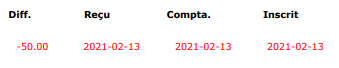
Applying the overpayment to the “Donation” item
Step 1: Go to the invoice and click "Add item" to add a donation line.


Step 2: Select "Donation" from the item group, then click "Edit invoice" to apply the changes.


Final result
The invoice is updated with the donation line. The overpayment is now formally recorded and logged in the club's books.

💡 Tip: This approach maintains full traceability of donations while simplifying the management of overpayments. It's ideal for clubs that want to formally thank generous members.
Payment adjusted following a subscription change
A member changes their subscription type (for example, moving from a full membership to a passive membership) and adjusts the payment amount themselves accordingly. Plugin.ch detects this change and the invoice must be adjusted based on the new subscription.
Situation detected
Scenario: A member had a full subscription (717 CHF membership fee + 70 CHF license = 787 CHF total) but switches to a passive subscription (50 CHF). They adjust their own payment and pay only the new amount.
Previously expected payment: 787 CHF

Payment received (adjusted by the member): 50 CHF (for the new passive subscription)

Anomaly: A payment appears in ORANGE in the installments list because the amount does not match what was expected.
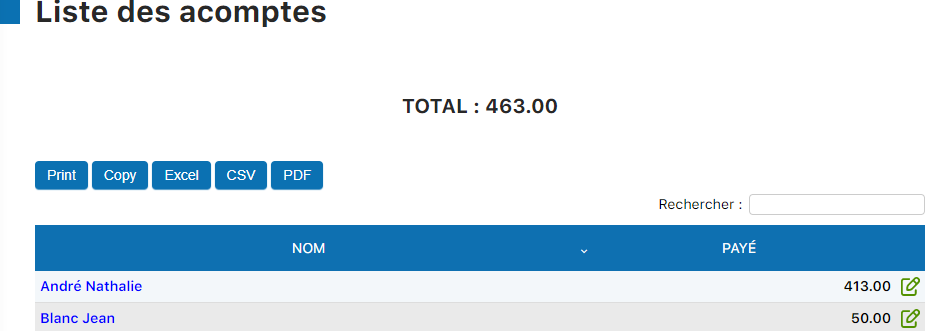
Handling the subscription change
Step 1: Click the pencil icon to view the installment details and edit the invoice.
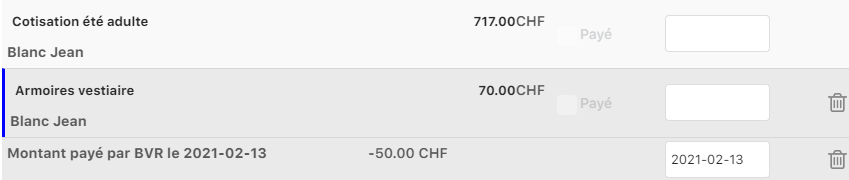
Step 2: Remove the "Locker cabinet" item, which is no longer relevant with the new passive subscription.

⚠️ Important: Don't forget to also cancel the locker rental in the member's specific services management!
Step 3: Go to the menu MEMBER / MANAGE SUBSCRIPTIONS to change the member's subscription type.



Step 4: After changing the subscription, go back to the invoice and click "Refresh" to update the amounts.



💡 Tip: Keeping the member's subscription in sync with the invoice is essential to avoid inconsistencies. Always refresh after making changes.
Final check and key points
Installments processing checklist
☐ Regularly check the installments list (INVOICE / INSTALLMENTS LIST)
☐ Classify each anomaly according to one of the 7 cases described
☐ Apply the appropriate handling (refund, transfer, refresh)
☐ Document the actions taken in the invoice notes if needed
☐ Follow up with the member if a balance is still due or a refund is pending
☐ Check that the installments list shows a total of 0 CHF
☐ Keep records of transfers and refunds in the archives
Summary of the 7 handling cases
| Case | Situation | Action |
|---|---|---|
| 1 | Double payment, same BVR | Return the overpayment |
| 2 | Wrong BVR for an invoice | Transfer the payment to the correct invoice |
| 3 | Payment lower than the invoice | Follow up for the balance due, reprint invoice |
| 4 | Accidental overpayment | Refund the surplus |
| 5 | Double payment same file | Transfer then refund the anomalies |
| 6 | Intentional overpayment (donation) | Add “Donation” item to the invoice |
| 7 | Subscription change | Change subscription, refresh invoice |
💡 Tip: Regularly monitoring installments ensures clean accounting and trusted relationships with your members. Handle them as soon as they appear!
Plugin.ch Tutorial — Process installments
A complete guide to managing anomalous payments and installments in your club management system.
For more help, see the official documentation or contact Plugin.ch support.